Search and ranking
How semantic, lexical and exact-phrase search work together, and how to preview the results.
Every search runs two techniques at once against your resources:
- A semantic search, which looks for chunks that mean the same thing as the query, even if they use completely different words.
- A lexical search, which looks for chunks that contain the actual words of the query.
Neither one is enough on its own. Semantic search is what makes a search feel intelligent, because it answers a question that was never phrased the way the source text was written. On its own, though, it quietly fails on exactly the things that matter most in practice, like a product code or an order number, where the literal string is the whole point and "meaning" does not really apply. Lexical search has the opposite profile: excellent at exact terms, blind to a paraphrase.
| Technique | Good at |
|---|---|
| Semantic | Questions phrased differently than the source text, synonyms, paraphrasing. |
| Lexical | Exact terms: product codes, order numbers, names. |
The lexical side currently only understands English words. Content in other languages still benefits from the semantic side, which works across languages.
Combining semantic and lexical search
Combining both techniques is handled automatically by the service, there is nothing to configure per Knowledge Group. The semantic and lexical results are first merged into a single ranked list based on where each chunk placed in either search, rather than by blending raw similarity numbers. That merged list then goes through a reranking step, which reads the query and each candidate together to refine the final order before the top matches are returned.
Exact Filter
Wrap any part of your query in double quotes to require an exact phrase: only chunks whose text contains that exact wording are considered at all, even if another chunk would otherwise be a strong match for the rest of the query.
A query can mix a quoted phrase with plain words. The plain words still take part in the normal semantic and lexical search described above, they just never loosen the phrase requirement:
You can quote more than one phrase in the same query; a chunk must then contain every phrase to be considered:
A few things to know about how a phrase is matched:
- Matching is case-insensitive and tolerant of how the words are spaced,
so
"30 day return"also matches text written as30-day returnor split across a line break. - It does not match a different form of a word:
"brand video"does not match "branding videos". - A phrase cannot cross a sentence or clause boundary: a period, comma, semicolon, colon, question mark or exclamation mark between the words breaks the match.
If nothing in the Knowledge Group contains the required phrase, the search
returns no results, along with a PHRASE_NOT_FOUND note instead, see
Understanding results below.
Understanding results
Each result's score reflects how well that chunk matches the query once ranking and reranking are applied, the higher the score, the better the match.
Alongside results, a search response can include a notes array: short,
human readable explanations of something worth knowing about that particular
search, each with a reason code and a message, see
Request reference for the full list.
A note shows up for things like an empty Knowledge Group, a query that did
not closely match anything, or results that could only be ranked by one of
the two techniques. You can pass these notes along to the model you hand the
results to, as general metadata about how the search went, so it can say it
found nothing relevant instead of answering from an unrelated passage.
Context Preview
Context Preview lets you run a real search against a group's resources directly from the dashboard, so you can judge the results before writing any integration code. Open it from a group's Resources page.
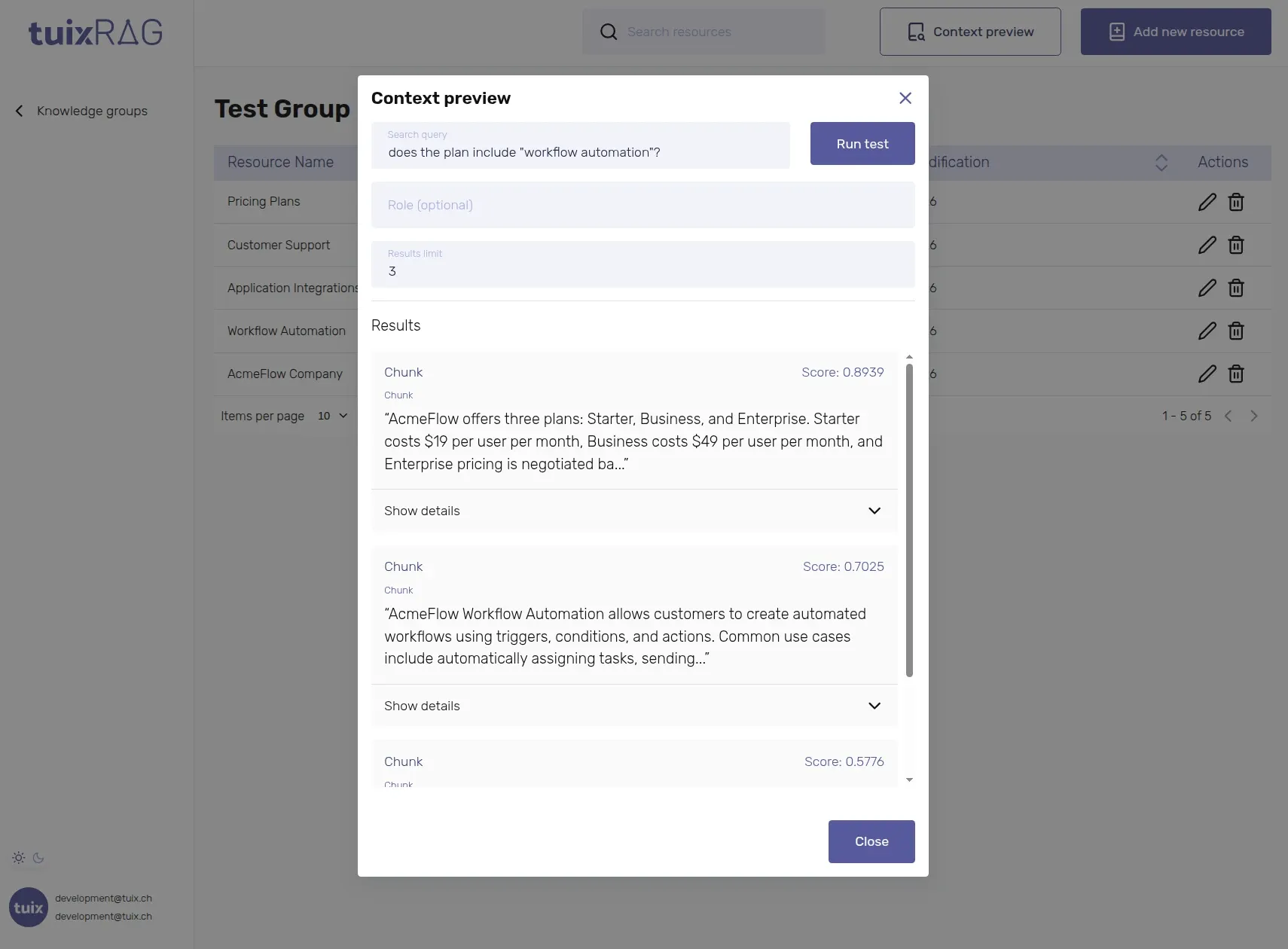
| Field | Required | Description |
|---|---|---|
| Search query | Yes | The question or text to search for. |
| Role (optional) | No | Only match resources tagged with this role, or with none, see Role Filter. |
| Results limit | No | How many chunks to return, from 1 to 20. Defaults to 5. |
Click Run test to see the matching chunks, each with its score and a preview of its text.
Context Preview currently shows the results and their scores only; the
notes array described above is available through the API, see
External integrations.